Share
The Share Solution form allows you to share your solution with other users. You just enter one or more users' email addresses on the form, select the permission you want to give the new users and continue.
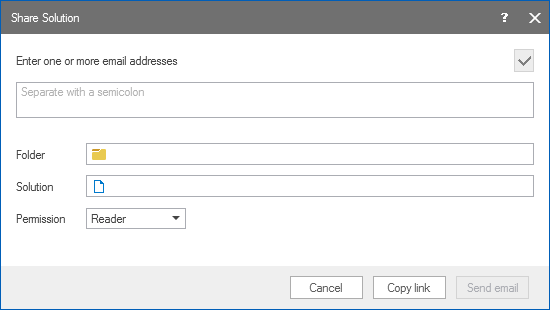
The 'Share' dialog. click to enlarge
Email Fill in all the email addresses of all the users you want to share this solution with. You can copy paste from outlook. You can click on the Check email button to verify the emails
Folder (read-only) Shows the folder where the shared solution is stored.
Solution (read-only) Shows the name of the shared solution.
Permission Sets the authorization on the shared solution. You can select between Reader and Contributor.
After you have specified the settings, you can click on the Copy link button to get a link to the solution on your clipboard or you can click on the Send email button to open outlook with a predefined email message with the link which you can then send to the users you want to share this solution with. For both options the user is given the permission on the folder where the solution is located.